SSH Connection
Overview
- Request an account (if you do not already have one).
- Send us your public SSH key to hpc@fieb.org.br. Below we have instructions on how to generate your key for each environment.
- Once we have your public key you can connect with ssh.
- Login node addresses and other details of the clusters, such as scheduler partitions and storage, can be found on the clusters page.
- If you are having trouble logging in: please read the rest of this page, then contact us if you are still having trouble.
Access to a cluster's login nodes may be restricted to specific networks
Please note that access to a cluster's login nodes may be restricted to specific networks within the campus or facility. In such cases, you can use a Virtual Private Network (VPN) provided by HPC Center or try to use the cluster external IP's that you are trying to access.
What are SSH keys?
SSH (Secure Shell) keys are a set of two pieces of information used to identify yourself and encrypt communication to and from a server. These typically come in the form of two files: a public key (usually saved as id_ed25519.pub) and a private key (saved as id_ed25519 or id_ed25519.ppk).
We use an automated system to distribute your public key onto the clusters, which you can log in to here. All the public keys authorized for your account are stored in the file ~/.ssh/authorized_keys on the clusters you have access. If you use multiple computers, you can either keep the same SSH key pair on everyone or have a different set for each. Having only one is less complicated, but if your key pair is compromised, you must be concerned about everywhere it is authorized.
Warning
Keep your private keys private! Anyone with access to them can assume your identity on any server where your keys are authorized. We will never ask for your private key.
For further reading, we recommend starting with the Wikipedia articles about public-key cryptography and challenge-response authentication.
SSH Connection on macOS and Linux
Generate Your Key Pair on macOS and Linux
- Open a terminal/xterm session.
- macOS: Open
Applications -> Utilities -> Terminal. -
Generate your public and private SSH keys by entering the following command:
-
Press
Enterto accept the default value. - Choose a secure passphrase. Your passphrase will prevent access to your account in the event your private key is stolen.
- Enter the passphrase again.
-
Your key pair is generated and written to a directory called
.sshin your home directory. The public key is stored in~/.ssh/id_ed25519.pub.If you forget your passphrase, it cannot be recovered. Instead, you must generate and upload a new SSH key pair.
-
Upload your public SSH key on the cluster by running the following command in a terminal:
-
Copy its content, and send it to us at hpc@fieb.org.br.
It can take a few minutes for newly uploaded keys to sync out to the clusters, so your login may not work immediately.
Connect on macOS and Linux
Once your key has been copied to the appropriate locations on the clusters, you can log in with the command:
Or
Check out our Advanced SSH Configuration for tips on maintaining connections and adding tab complete to your SSH commands on Linux/macOS.
SSH Connection on Windows
We recommend using MobaXterm for Windows, but you can also use Putty or one of the Windows Subsystem for Linux (WSL) distributions and follow the Linux instructions above. However, using WSL may cause issues if you try to use any graphical applications.
Connecting via Putty (SSH)
To connect to the HPC cluster using Putty, follow these steps:
- Download and install Putty: Download Putty from https://www.putty.org/ and install it on your system.
-
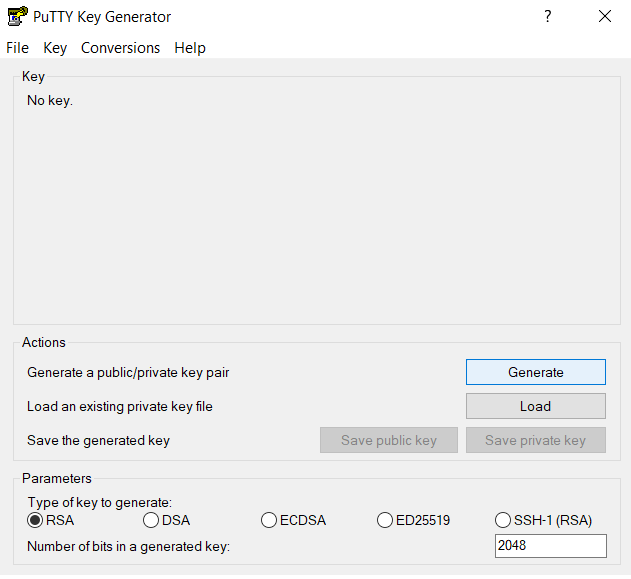
Generate your SSH keys: Use the PuTTY Key Generator, included in the Putty package (as of early 2019), to generate your private and public SSH keys.
-
Share your public key: Once your SSH keys are generated, send your public key to the Senai HPC Team so they can authorize your access to the cluster. Do not share your private key with anyone. The Senai HPC Team will never ask for your private key.
-
Access the cluster: If your SSH key has been set up correctly, the HPC team will provide you with the login node IP address for the cluster. Enter this IP address in Putty and click "Open" to connect.
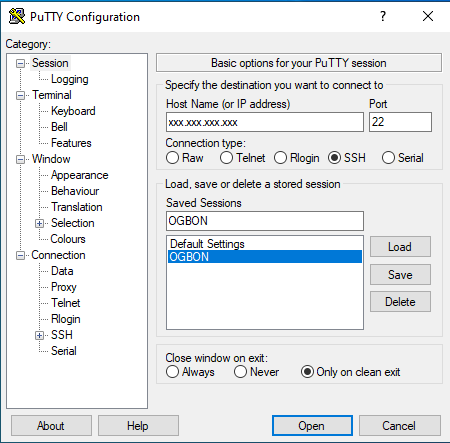
With these steps completed, you should now have secure access to the HPC cluster via SSH using Putty.
MobaXterm
You can download, extract, and install MobaXterm from this page. We recommend using the "Installer Edition", but make sure to extract the zip file before running the installer.
Generate Your Key Pair on Windows
- Open MobaXterm.
- From the top menu, choose
Tools -> MobaKeyGen (SSH key generator). - Leave all defaults and click the "Generate" button.
- Wiggle your mouse to generate some randomness.
- Click "Save public key" and save your public key as
id_ed25519.pub. - Choose a secure passphrase and enter it into the two relevant fields. Your passphrase will prevent access to your account in the event your private key is stolen.
- Click "Save private key" and save your private key as
id_ed25519.ppk(this one is secret, don't give it to other people). - Copy the text of your public key and paste it into the text box in our SSH key uploader.
Your key will be synced out to the clusters in a few minutes.
Connect with MobaXterm
To make a new connection to one of the clusters:
- Open MobaXterm.
- From the top menu, select
Sessions -> New Session. - Click the SSH icon in the top left.
- Enter the cluster login node address (e.g.,
ogun-login.senaicimatec.com.br) as the Remote Host. - Check "Specify Username" and enter your username.
- Click the "Advanced SSH Settings" tab and check the "Use private key box", then click the file icon
/magnifying glass to choose where you saved your private key (id_ed25519.ppk). - Click OK.
In the future, your session should be saved in the sessions bar on the left in the main window.